WE KNOW OF A FEW SKULLCANDY APP ISSUES YOU MAY ENCOUNTER, AND WANT TO SHARE THOSE WITH YOU
ON ANDROID PHONES:
YOU COULD EXPERIENCE AN UNEXPECTED VOICE CONTROL OFF/ON WHEN BRINGING THE APP TO THE FOREGROUND.
When coming back to the Skullcandy App, your product could disconnect and reconnect when bringing the SKDY App to the foreground. You will hear “Voice Control Off”, followed by “Voice Control On”. You can see this process happening on the product card in-app.
- This does not affect the user or product functionality in any way, although we recognize the voice prompts may be unexpected.
HAVING ISSUES LINKING PREVIOUSLY CONNECTED PRODUCTS?
After updating to version 3.3.0 or 3.3.1 of the Skullcandy App, some users may experience issues connecting products they had linked with a previous version of the Skullcandy App. To solve this, please follow these steps:
- Clear the Skullcandy App’s Storage
- Open the Settings application on your device.
- Head Over to Apps Menu
- Choose Installed Applications
- Find the Skullcandy App
- Select it, Move to the Storage Tab
- Hit Clear Storage/Clear App Data
- Uninstall the Skullcandy App and reinstall the Skullcandy App from the Google Play Store
- Ensure your app-compatible product is paired with your phone and you can stream audio to your product.
- Launch the Skullcandy App with your product connected to your phone
- Follow the intro screens and accept all permissions (Bluetooth, Location, and Media)
- Wait 2-5 seconds, a screen will open asking to connect to your product
- Select connect and your product should connect with no issues. Now when you open the Skullcandy App it will automatically connect to the product you’re using!
ON IOS PHONES:
FOR BEST RESULTS USING VOICE CONTROL
Skullcandy’s new Skull-iQ hands-free voice control is a major advancement in true wireless audio. Controlling your music, phone calls, awareness, Spotify, and even activating your phone's assistant all hands-free is incredibly powerful.
The Skullcandy mobile app is a critical part of the hands-free voice control system and should be left running to ensure voice commands are always available. On rare occasions on iOS devices, the phone may suspend or terminate applications if resources (memory or processor time) are scarce. This usually happens when you have a lot of apps open, even if you aren’t actively using them. When this occurs, the voice controls may become sluggish or unresponsive or you may hear the “Voice Controls Off” voice prompt.
To solve this problem, unlock your phone and close any apps that you are not using to free up resources. Close and restart the Skullcandy app and voice controls should resume and remain reliable. If this does not help, try restarting the phone to recover memory resources. In general, you can minimize the likelihood of this issue occurring by periodically closing apps you are not using so that memory and processor resources do not become too limited. These simple steps will ensure you get the most out of your new Skull-iQ product.
YOU MAY EXPERIENCE INCONSISTENCY WITH PRODUCT RECONNECTION WHILE THE SKULLCANDY APP IS RUNNING IN THE BACKGROUND. (GRIND, GRIND FUEL, & PUSH ACTIVE ONLY)
Earbud auto-connect to the Skullcandy App occasionally fails when the app sits idle for a while. In this instance, you may not hear a “Voice Control On” prompt. Next, you will see an App Launch Notification to “allow” access to your earbuds.
- To fix, SELECT “ALLOW” on the App Launch Notification. The Skullcandy App will open and auto-connect to the product. You may hear “Voice Control On”.
- If the auto-connection does not occur, there will be a notification at the top of the App screen. Swipe up on the notification, then select the “+” to manually connect your earbuds.
- The longer the app is idle the more likely this is to occur.
Reference an App Launch notification alert: 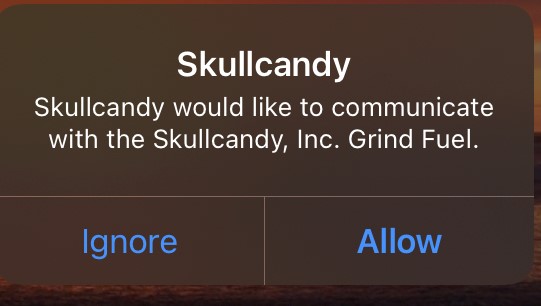
YOU MAY EXPERIENCE AN UNEXPECTED DISCONNECT FROM THE SKULLCANDY APP WHILE THE APP IS NOT ACTIVELY UTILIZED AND EXISTS IN THE DEVICE BACKGROUND. (GRIND, GRIND FUEL, & PUSH ACTIVE ONLY)
The user may hear “Voice Control Off” unexpectedly and have the App Launch Notification Appear.
- To fix, select “Allow” on the App Launch Notification. The Skullcandy App will open and auto-connect to the product. You may hear “Voice Control On”.
- If the auto-connection does not occur, there will be a notification at the top of the App screen. Swipe up on the notification, then select the “+” to manually connect your earbuds.
Reference an App Launch notification alert:
AFTER CONNECTING PUSH ACTIVE, GRIND, OR GRIND FUEL, YOU MAY BE UNABLE TO CONNECT A SECOND SKULLCANDY PRODUCT IN THE SAME APP SESSION
After connecting Push Active, Grind, or Grind Fuel to the Skullcandy App the user may be unable to connect one of the following products:
- Indy Fuel
- Indy Evo
- Sesh ANC
- Mod
To fix, force quit and relaunch the Skullcandy App. Connecting Push Active, Grind, or Grind Fuel will cause the Skullcandy App to be unable to connect to the above products again in the same app session
https://support.skullcandy.com/